Door setup guide
Download this guide as a PDF →
Option 1 - Just the QR code (most common)
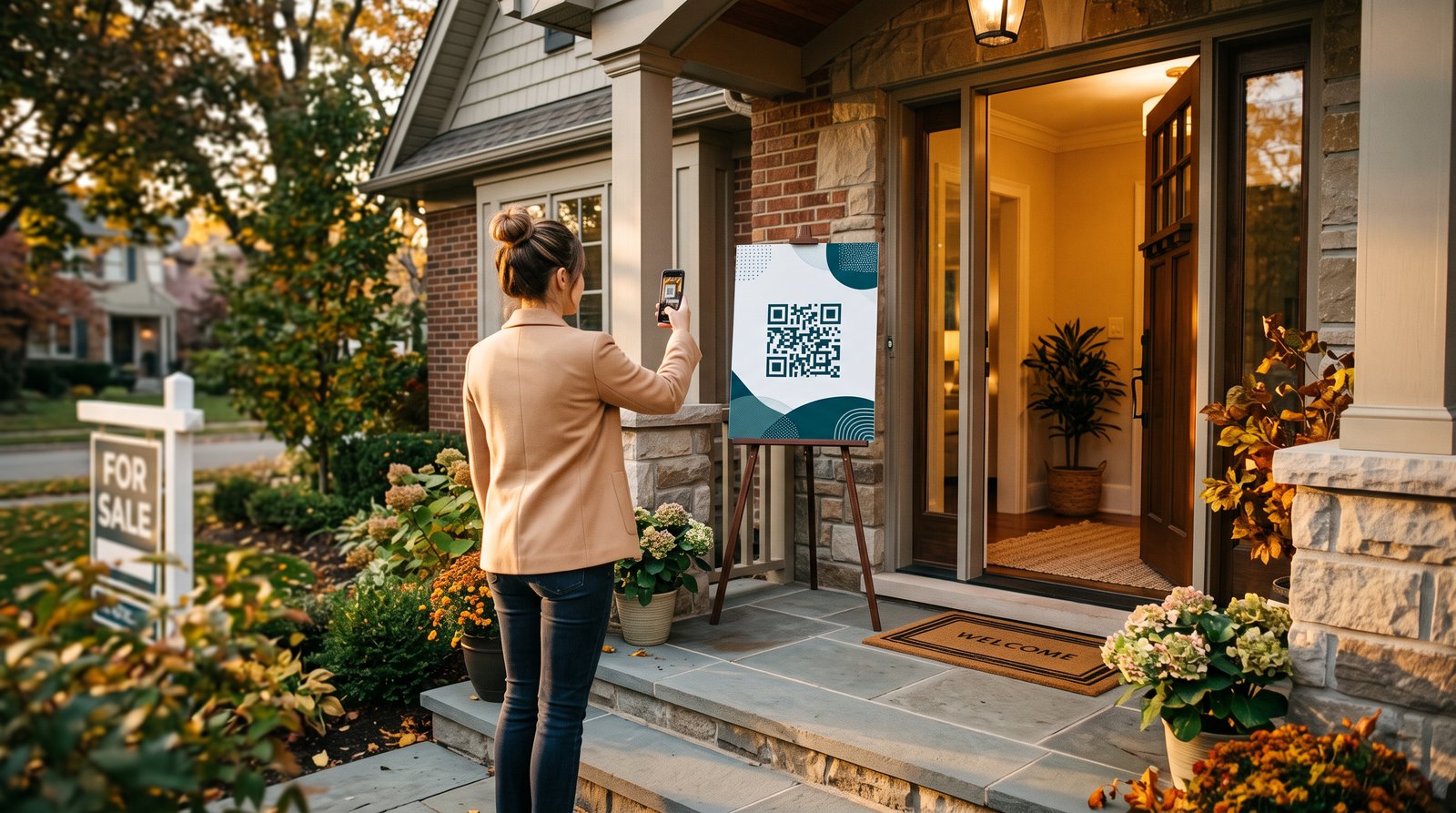
Every open house in Foyer has its own QR code. Print it, put it in a frame or on a sign stand by the front door, and visitors check in on their own phone - no app download, no line at a tablet.
- In Foyer, open your live open house and tap the QR panel - print it or save it to your phone.
- An 8.5×11 print in a $10 acrylic sign holder reads perfectly from 3–4 feet.
- Your phone shows every check-in live while you work the room.
Option 2 - Your phone as the command screen
Sign in at app.foyeroh.com on your phone. While your open house is live you'll see the check-in count, the QR to show walk-ups, and every visitor's score the moment they submit. For one-tap access, add Foyer to your home screen:
- iPhone: Safari → Share → Add to Home Screen.
- Android: Chrome → menu → Add to Home screen.
Option 3 - A dedicated door tablet (kiosk mode)
For busy properties, any tablet you already own becomes a self-serve check-in station. A used iPad or a ~$150 Amazon Fire tablet works fine - there is nothing to install.
- Sign in on the tablet, enable Kiosk Mode in Settings, and tap Launch Kiosk.
- The form resets automatically after each visitor and keeps working if the Wi-Fi drops - check-ins sync when the connection returns.
- Lock the tablet to Foyer: iPad → Settings → Accessibility → Guided Access; Fire/Android → Screen pinning.
- Exiting the kiosk requires your team's staff PIN (set by your team lead in Settings).
Checklist before doors open
- Open house started in Foyer (check-in only works while it's live).
- Property documents uploaded - visitors get them instantly after check-in.
- QR printed or tablet charged and locked to the kiosk.
- Your phone signed in so you can watch the room.
Questions? hello@foyeroh.com - we'll get you set up.